Tasks in CASM are designed to capture and manage all your tasks effectively, whether you’re adding new tasks or updating existing ones. When managing tasks, there are several steps to ensure proper tracking and completion:
There are three main sections when adding an asset:
Navigate to Tasks: Go to the OPERATIONS menu and select TASKS.
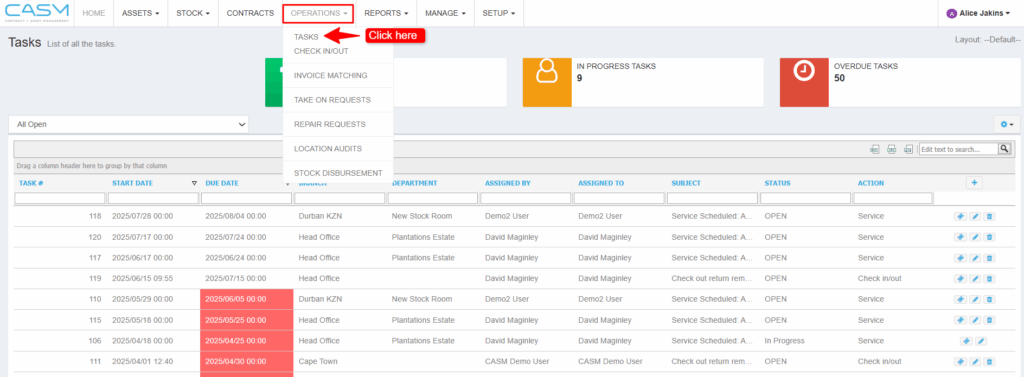
Click the Add Task Button: Locate the clickable “+” icon in the top right corner of the tasks grid. Clicking this will open a popup window to add a new task.

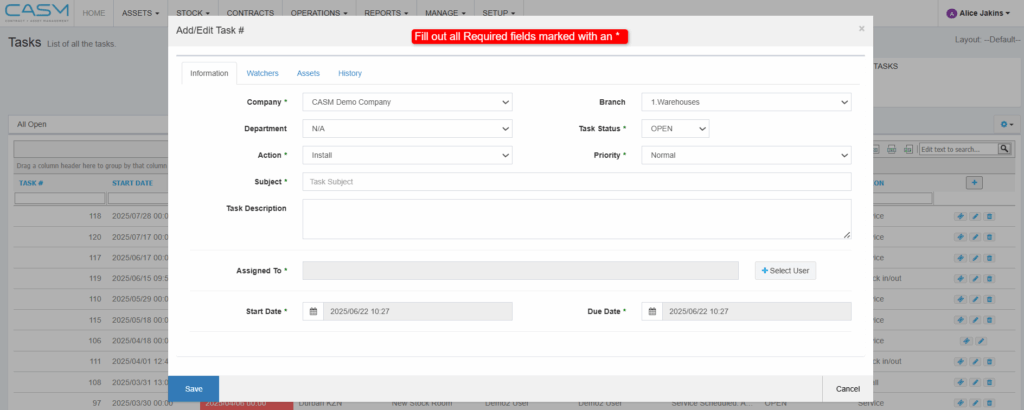
Fill in the Required Fields: The popup window will display various fields. Be sure to complete all the mandatory fields marked with an asterisk (*). These fields may include details like:
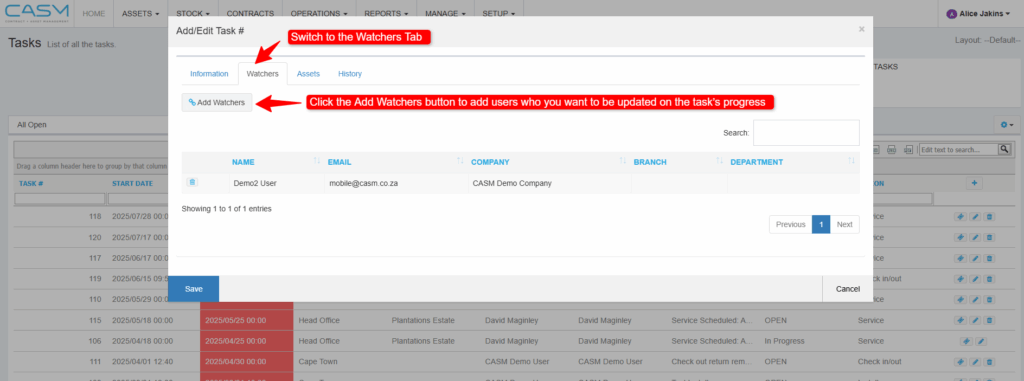
Add Task Watchers (Watchers Tab): Switch to the Watchers tab within the popup window. Here, you will add watchers to the task. Watchers are people who will be updated on the task’s progress.
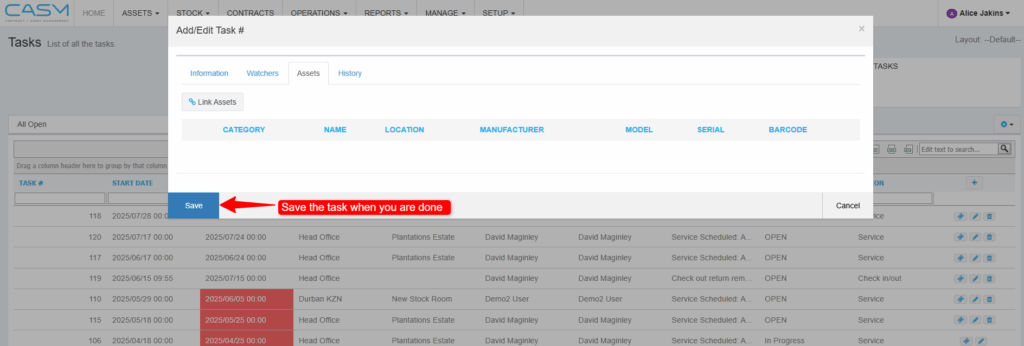
Link Assets: Switch to the Assets tab in the popup. Here, you will link assets to the task if the task is related to an asset.
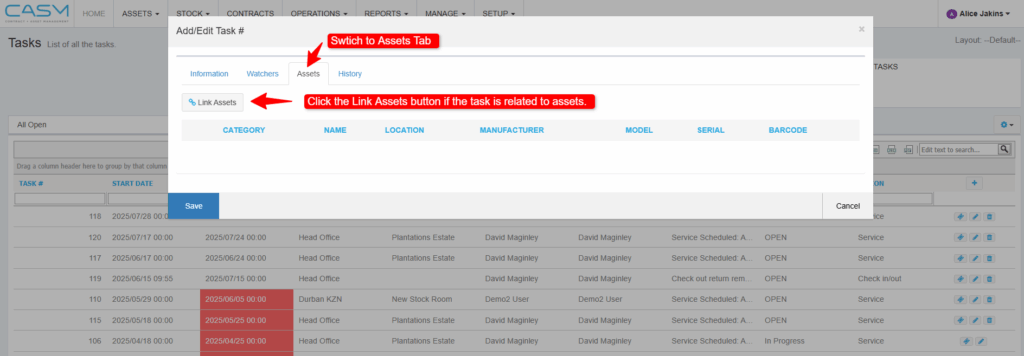
Save the New Task: Once you’ve filled in all the necessary details, click the Save button at the bottom of the popup window. This will add the new task to your task list, and the assignee will receive an email notification.
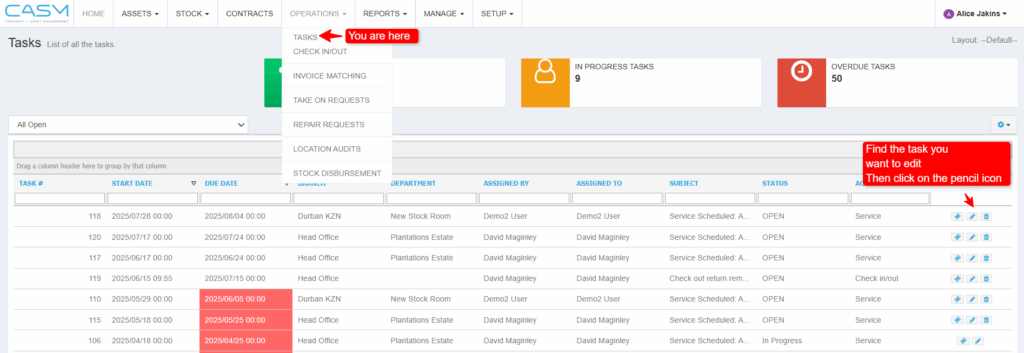
Navigate to Tasks: Go to the OPERATIONS menu and select TASKS.
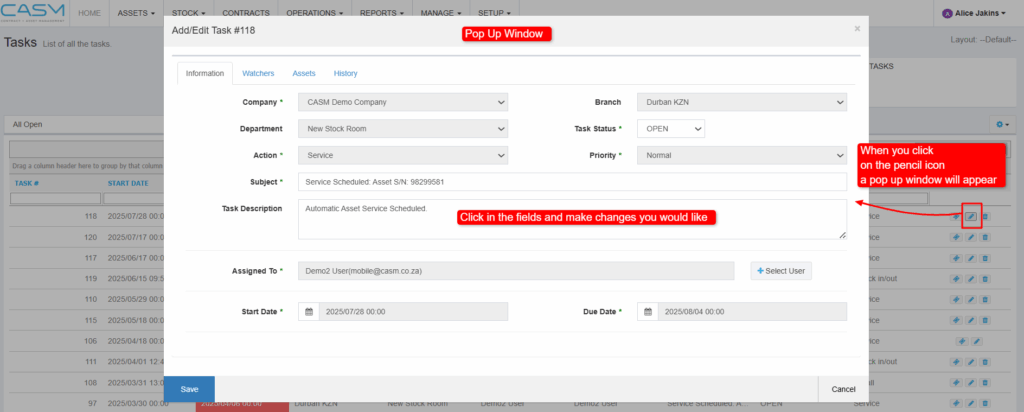
Click the Edit Task Button: Locate the clickable “Pencil” icon to the right corner of the tasks grid. Clicking this will open a popup window to edit the selected task.
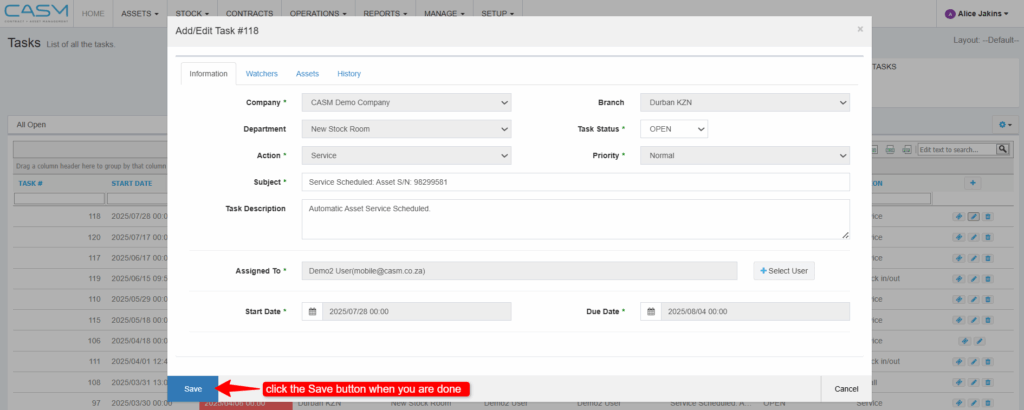
Edit Information: Edit the desired information.
Save the Task: Once you’ve filled in all the necessary details, click the Save button at the bottom of the popup window. This will add the save the task edits.
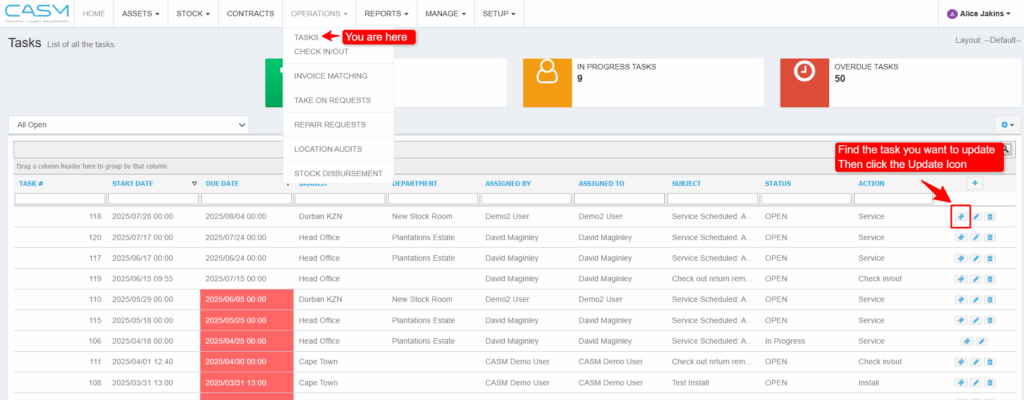
Navigate to Tasks: Go to the OPERATIONS menu and select TASKS.
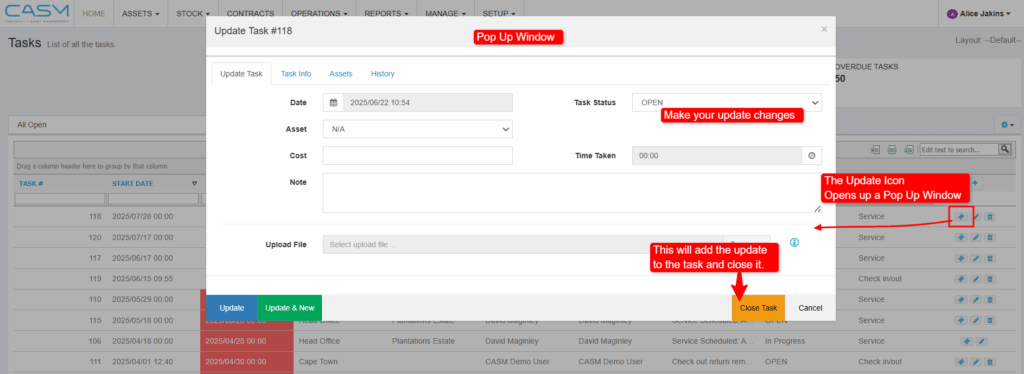
Click the Update Task Button: Locate the clickable “Update Task” icon to the right corner of the tasks grid. Clicking this will open a popup window to edit the selected task.
Update Task: The popup window will display various fields with which to update the task. These fields may include details like:
Update the Task: Once you’ve filled in all the necessary details, click the Update button at the bottom of the popup window. This will add the update to the task.
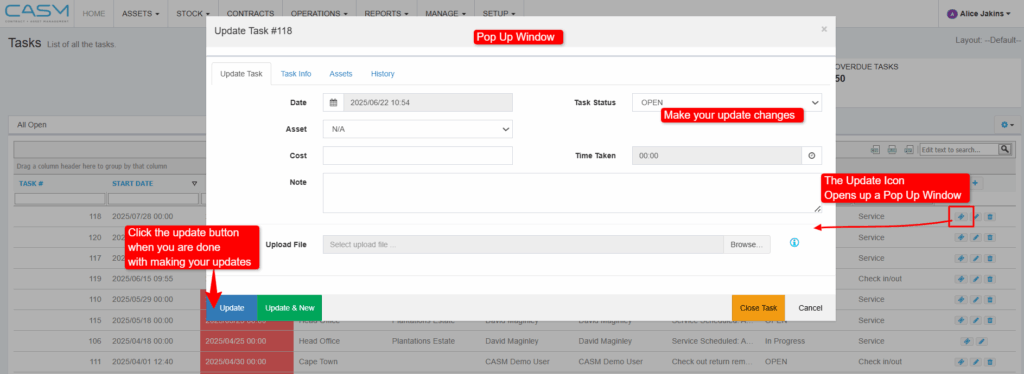
Close the Task: Once you’ve filled in all the necessary details, click the Close Task button at the bottom of the popup window. This will add the update to the task and close it.