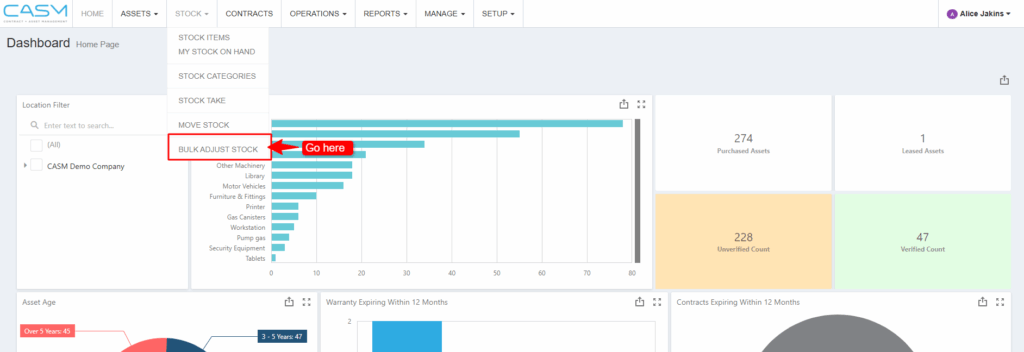
Navigate to the Bulk Adjust Stock Tab: Go to the STOCK menu and select the BULK ADJUST STOCK tab.
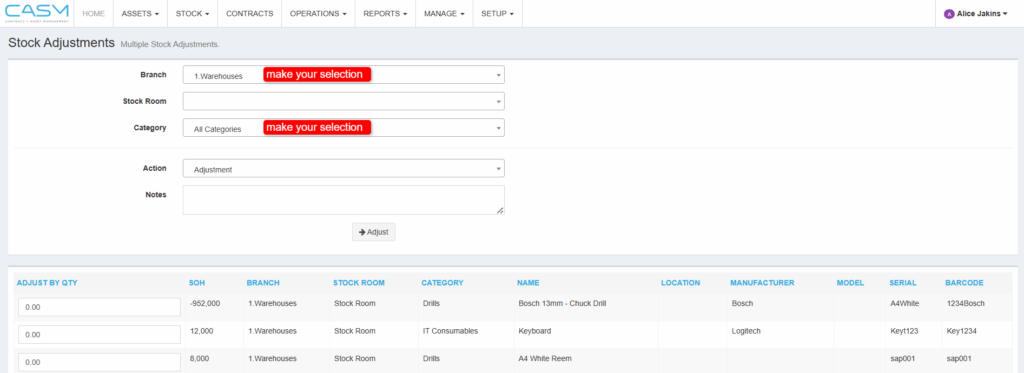
Select the Location and Category: Choose the branch, stock room, and category for which you want to adjust the stock.
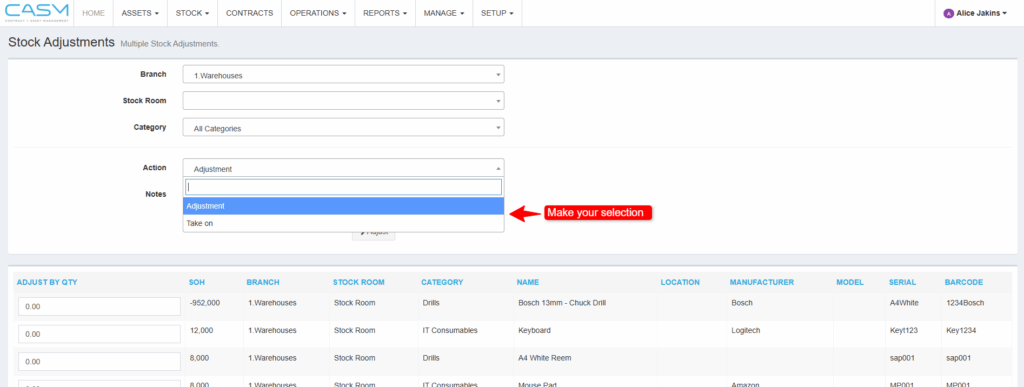
Choose the Adjustment Action: Using the Action dropdown, select whether you want to “Adjust” or “Take on” stock.
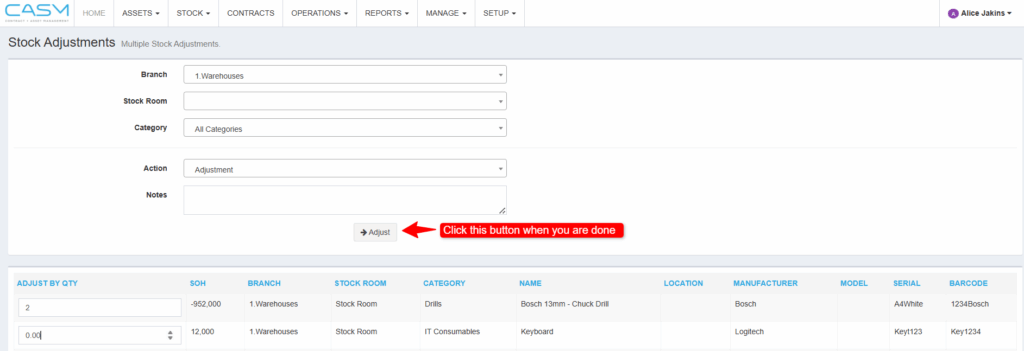
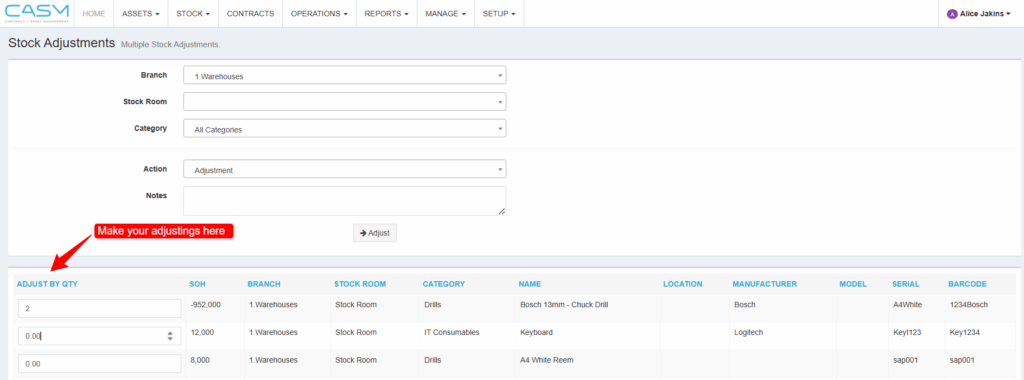
Adjust the Stock Quantities: In the table, select the stock item(s) you want to adjust by editing the quantity in the “ADJUST BY QTY” column for each relevant item.
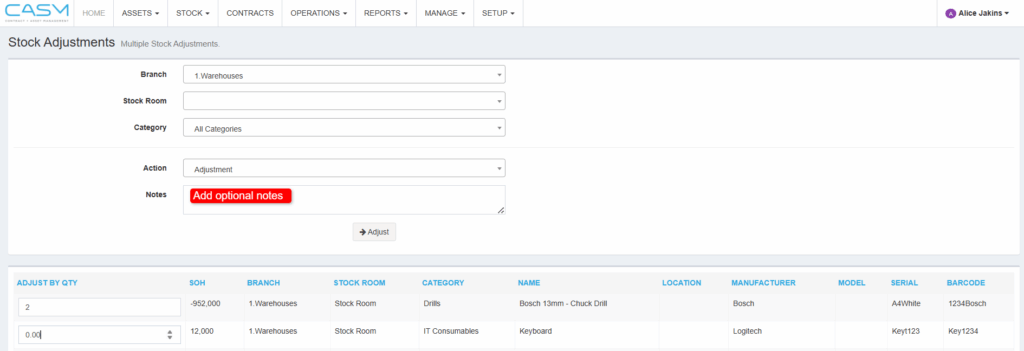
Add Notes for the Adjustment (Optional): In the Notes field, add any relevant notes about the adjustment if applicable.
Complete the Adjustment: Once all details are set, click the Adjust button to complete the stock adjustment process.